TARDIS Lights GUI
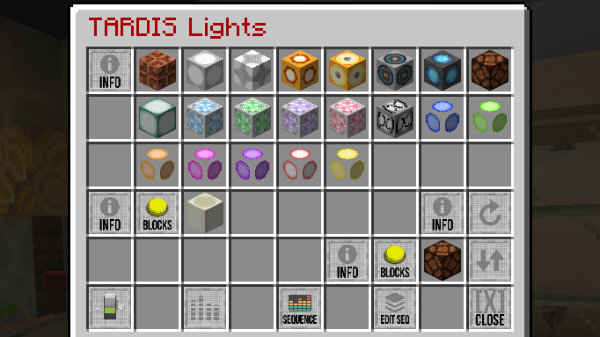
The TARDIS Lights GUI has several functions including:
- Setting the preferred light type
- Changing and converting light types
- Editing and playing light sequences
- Turning the lights on and off
Light Type
You can set the light type for your current desktop by choosing a light from the options in the first three rows of the GUI.
If selecting a variable light, you can also set the block the variable light is attached to. Click the Variable Light Block button to open the blocks menu.
Change your light type
- Select a light from the options in the first three rows.
- If the light is variable also select a block type by clicking the Block Type button.
- Click the Change your light type button to start the light change.
Convert blocks to lights
If your current desktop uses regular lamp / lantern blocks, you can convert them to TARDIS lights.
- Click the Select block to convert button to select a block type to convert.
- Select a light from the options in the first three rows.
- Click the Convert blocks to lights button to strat the conversion.
Variable lights

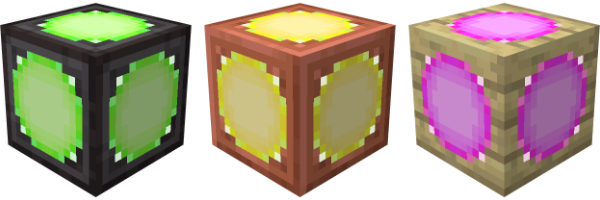
Variable lights are available in various colours - blue, green, orange, pink, purple, red, and yellow.
The variable aspect of these lights is the ability to set the block type that the light is placed on.
Light switch

Toggle the TARDIS interior lights on and off.
Light levels
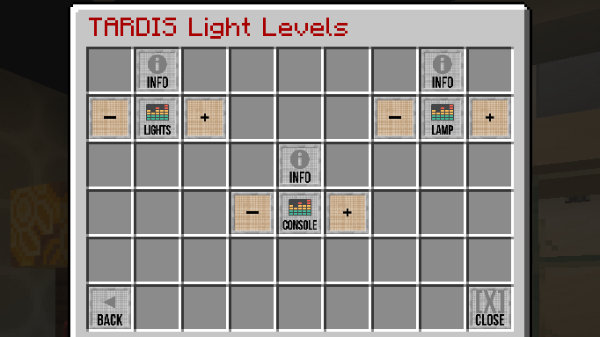
Click the Light Levels button to open the Light Levels GUI.

You can adjust the individual light levels for:
- The TARDIS interior lights.
- The TARDIS exterior lamp.
- The console lamp.
Light sequences
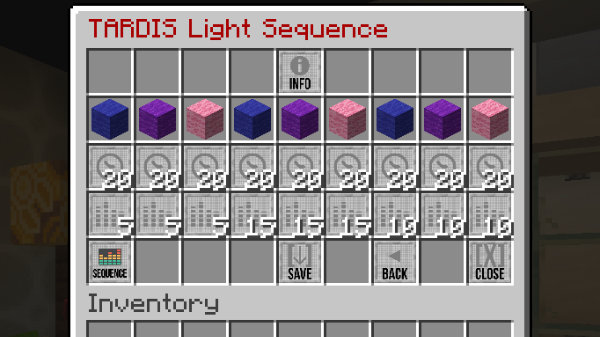
You can setup and play sequences of up to nine variable lights.
To edit sequences, click the Edit Light Sequence button.

- Set the colour of the light.
- Set the time each light is displayed for.
- Set the light level for each light.
- For sequences less than nine lights, set the remaining lights to black.
- To load an example light sequence, click the Preset Sequence button to cycle through the examples.
To run a saved light sequence, click the Run Light Sequence button in the main Lights GUI.
